Restart First, Reset Only When You Need To
A restart and a factory reset do different jobs. A restart, or power cycle, turns the router off and on and keeps your settings. A factory reset erases them and returns the router to its out-of-the-box state.
Try a restart first. Unplug the router, wait about 30 seconds, then plug it back in. That clears many temporary glitches, such as a dropped connection, without undoing your setup.
A reset is the right move when:
- You forgot the administrator password and have no other way into the router panel.
- A settings change broke the connection and you cannot undo it.
- You are selling or giving away the router and want your details wiped.
- The same fault keeps returning after restarts and a firmware update.
What a Factory Reset Wipes, and What to Write Down First
A factory reset removes every change made since the router was new. Record your current setup first, because rebuilding it from memory is slow and easy to get wrong.
Note whichever of these apply:
- Wi-Fi name and key: reusing the same network name and wireless key lets most devices reconnect on their own.
- Internet provider login: some DSL and fiber connections need a PPPoE username and password, and a few also need a VLAN ID. Your provider can usually resend these.
- Static IP or custom DNS: copy any WAN address, gateway or DNS servers you entered by hand.
- Port forwarding rules: note each port, protocol and target device.
- DHCP reservations: list which devices get fixed local addresses.
- Parental controls: screenshots are the quickest record.
If you can still sign in, look for a backup option, often under a System or Maintenance menu. It saves your router configuration as a file you can load later. Backups usually restore only onto the same model and bring back every saved setting, so skip the file if a bad setting is why you are resetting.
Resetting From the Router’s Admin Panel
The admin panel is the easiest way to reset if you can still log in. The option usually sits under a System, Administration or Maintenance menu, named something like Factory Defaults or Restore. Menu names vary by manufacturer and firmware, and many mesh systems use a companion app instead.
- Connect by Wi-Fi or Ethernet and open the default gateway address in a browser, as explained in the walkthrough on signing in to the router panel.
- Enter the administrator username and password, which are separate from your Wi-Fi password.
- Open the System, Administration or Maintenance section and find the factory defaults option.
- Select it and confirm the warning.
- Keep the router plugged in while it erases its settings and restarts.
Restoring Factory Settings With the Reset Button
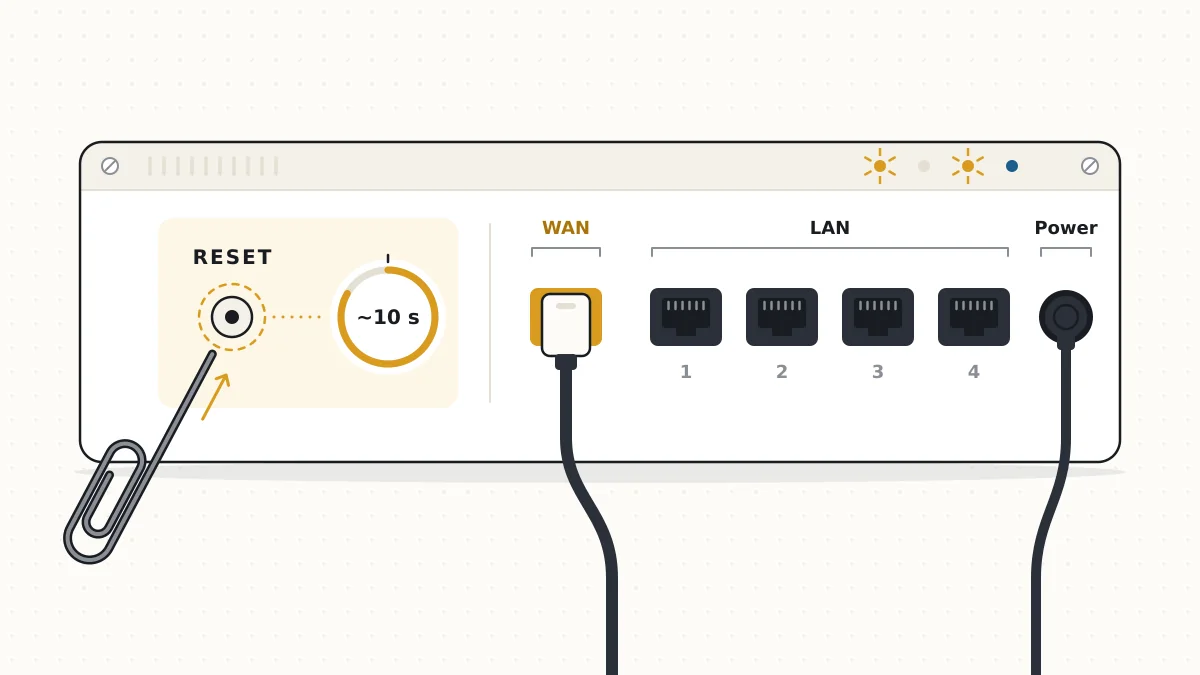
The reset button works even when you cannot log in, so it is the usual fix for a forgotten administrator password. Look for a small pinhole or recessed button on the back or underside, often labeled Reset or RST.
- Leave the router plugged in and switched on, and wait until it has fully started.
- Push a straightened paperclip into the reset hole until you feel the button click.
- Hold it for about 10 seconds, or as long as your manual specifies, since hold times differ between models.
- Release the button once the lights blink, change color or go dark.
- Wait several minutes while the router reboots with its factory settings.
On some models one button handles both WPS and reset, and a quick press only starts WPS pairing. Keep holding until the lights change.
Note: Do not unplug the router during the reboot. Cutting power partway through can interrupt the restore, so wait for the lights to settle.
Setting the Router Up Again After the Reset
After a reset, the router behaves like a new one, and the defaults printed on its label get you back in. Reconnect first, then rebuild your settings.
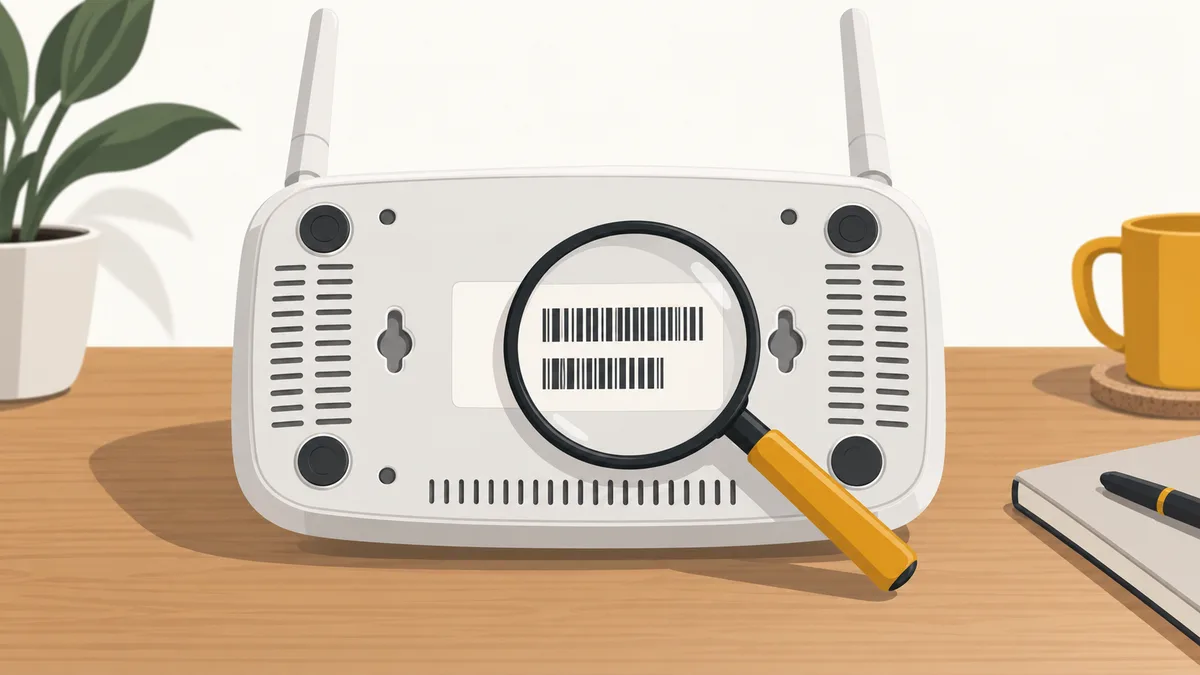
- Join the default Wi-Fi network using the name and key on the label, or plug in an Ethernet cable.
- Open the default gateway address in a browser. It is often 192.168.1.1, but not always, so look up the gateway your device reports.
- Sign in with the default administrator login from the label. Some newer routers instead ask you to create an administrator password.
- Run the setup wizard, choose your connection type (dynamic IP, PPPoE or static), and enter the provider details you noted.
- Set a new administrator password, following the steps for changing the admin password, and keep it different from your Wi-Fi key.
- Set the Wi-Fi name and key, reusing your old ones so devices rejoin without help.
- Install any available firmware update.
- Add back your port forwarding rules, DHCP reservations and parental controls.
Tip: Type the old Wi-Fi name and key exactly, capitals included. If your 2.4 GHz and 5 GHz bands had separate names, recreate both.
For background on how the gateway address works, see the complete 192.168.1.1 walkthrough.
Routers Supplied by Your Internet Provider
Check with your provider before resetting a router they supplied, especially if it also runs your phone or TV service. Many providers manage their equipment remotely and load their own settings onto it.
After a reset, some of these routers pull their configuration down again once they reconnect. Others stay offline until the provider sets them up again, and phone or TV service that relies on the router may stop working meanwhile.
Provider routers often print a unique Wi-Fi key and administrator password on the label. If that label is missing or worn, ask the provider for the credentials before you reset.
When a Reset Doesn’t Fix the Problem
A factory reset only clears software settings, so it cannot repair failing hardware or a faulty line. These signs point beyond the router configuration:
- No lights at all, even with a power adapter you know works.
- The router keeps rebooting on its own.
- The reset button does nothing, however long you hold it.
- The internet light stays off or red after setup.
If you have a separate modem or fiber ONT, restart it and check its status lights on their own, since a fault there affects any router behind it. Contact your internet provider about line or modem problems, and the router manufacturer about hardware faults or warranty questions.
Questions About Resetting a Router
How long does a router reset take?
Holding the button takes about 10 seconds on many models, and the reboot usually takes a few minutes. Setting everything up again takes longer.
Will a factory reset change my public IP address?
Not reliably. Your internet provider assigns the public IP address, and many providers keep giving the same address to the same equipment after a reset.
Does a reset remove viruses or unknown devices?
It clears tampered settings, such as altered DNS servers, and a new Wi-Fi key stops unknown devices from rejoining. It does not remove malware from your computers or phones, so scan those devices with security software and keep the router firmware current.
Will resetting my router make the internet faster?
Only if a bad setting was slowing things down. A reset cannot raise the speed your plan provides or fix a weak line, and a restart is usually enough to clear a temporary slowdown.
Does resetting the modem also reset the router?
Not when they are separate boxes, because each keeps its own settings and has its own reset button. If your provider supplied a combined modem and router, one reset clears both.