Getting Into Your Router at 192.168.1.1
192.168.1.1 is a private IP address that many home routers use for their admin panel. Typing it into a browser on a device connected to that router opens the login page, where administrator credentials unlock Wi-Fi settings, LAN options and connected-device lists. Not every router uses this gateway, so confirm yours first. This guide covers logging in, changing key settings, and fixing a login page that refuses to load on your network.
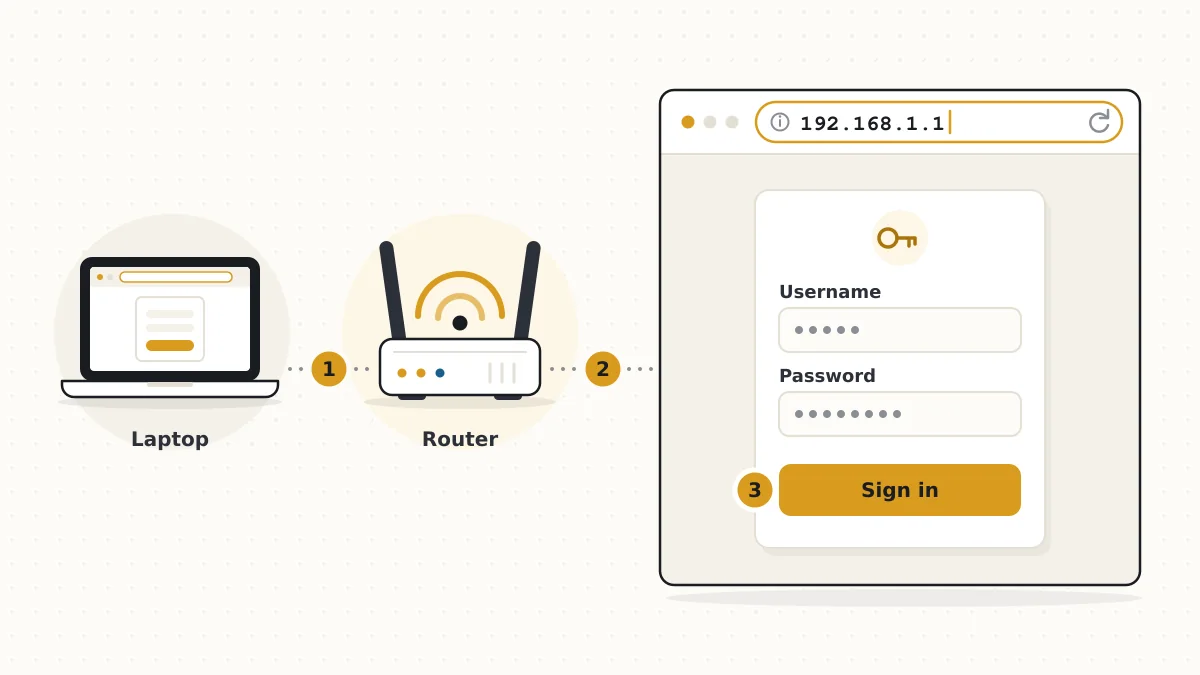
What the 192.168.1.1 Address Actually Is
192.168.1.1 is a private IPv4 address reserved for local networks. It cannot be reached from the public internet, so only devices on your own network can open it. Manufacturers assign it to the router itself, which makes it the default gateway, meaning the address your phone or laptop sends outbound traffic to.
Because the address is private, millions of separate home networks can use it at the same time without conflict. Opening it loads your router’s configuration interface, not a website. People often mistype it as 192.168.l.l with lowercase letters instead of the digit one, and browsers treat that as a search term.
Signing In to the 192.168.1.1 Admin Page
Logging in takes about a minute once your device sits on the router’s own network. Follow these six steps in order, and use the credentials printed on your router’s label.
- Connect your phone, tablet or computer to the router using Wi-Fi or an Ethernet cable, since local administration needs that connection.
- Open any browser and type 192.168.1.1 into the address bar, not the search box, then press Enter to load the page.
- Wait for the login screen to appear; if a security warning shows, continue, because local router pages often lack certificates.
- Enter the administrator username and password printed on the sticker underneath the router or in its manual, then submit the form.
- Change the default administrator password immediately if the router still uses factory credentials, then save it before adjusting anything else.
- Explore the dashboard to reach Wi-Fi, LAN and DHCP settings, remembering that menu names differ between manufacturers and firmware versions.
Finding the Right Router Username and Password
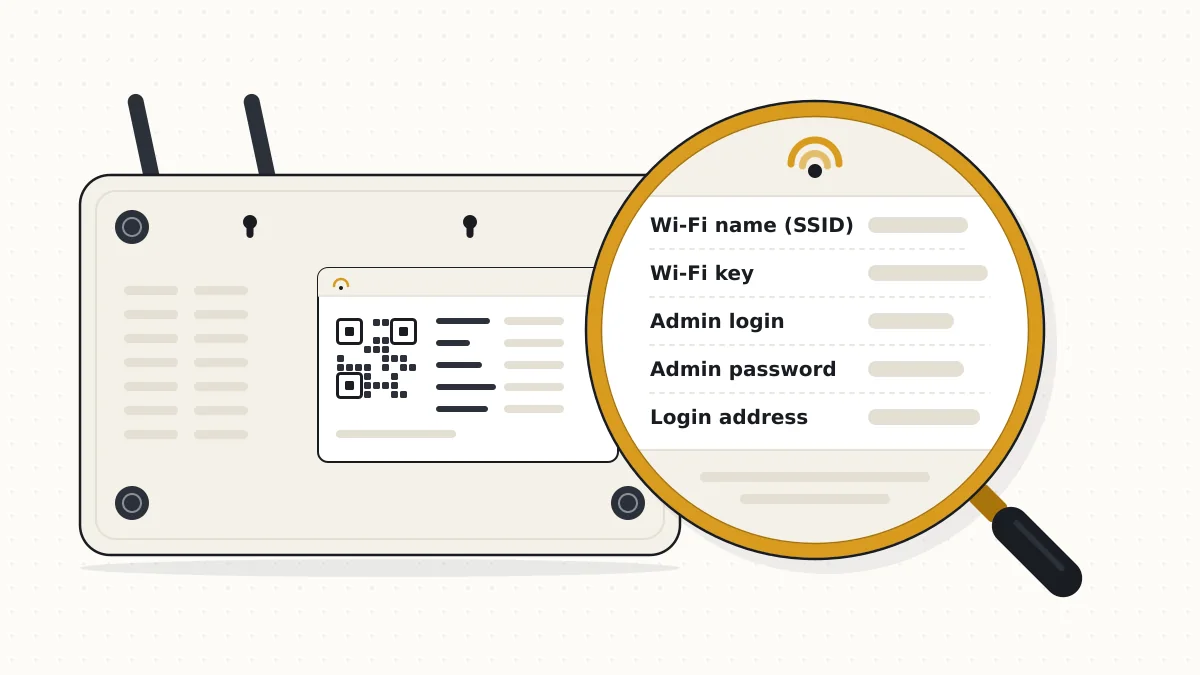
The credentials that open 192.168.1.1 belong to the router, not your internet account or your Wi-Fi network. Here is how to find the correct pair before you start guessing at random.
- Check the sticker on the base or back of the router, where most manufacturers print the default username and password.
- Look in the quick-start leaflet or the manual, which usually repeats the same credentials and any model-specific login address.
- Ask your internet provider if they supplied the router, because many providers set a unique password before shipping the unit.
- Reset the router to factory settings only as a last resort, since that erases your Wi-Fi name, password and custom configuration.
Factory Logins Seen on Popular Router Brands
Default credentials vary by brand, model and firmware version, and providers often replace them. Treat the table below as a starting point, then confirm the details against the label on your own router.
| Router brand | Frequently used username | Frequently used password |
|---|---|---|
| TP-Link | admin | admin |
| Linksys | admin or blank | admin |
| D-Link | admin | blank or admin |
| Netgear | admin | password |
| Asus | admin | admin |
| Zyxel | admin | 1234 |
| Tenda | admin | admin or blank |
| TRENDnet | admin | admin |
| Huawei | admin | printed on label |
| Provider-supplied router | printed on label | unique per unit |
What the Router Panel Lets You Change
The panel controls everything about your local network. You can rename the Wi-Fi network, set a new wireless key, choose WPA2 or WPA3 security, split or merge the 2.4 GHz and 5 GHz bands, and switch on a guest network for visitors. A connected-devices list shows what is currently using your connection.
Deeper menus handle the DHCP range, static leases, port forwarding, parental controls, firmware updates and configuration backups. Names and locations differ between manufacturers and firmware versions, so treat these as categories rather than exact labels. When a setting is unfamiliar, note the original value before you change it.
Renaming Your Wi-Fi and Setting a New Wireless Key
Your Wi-Fi password protects the wireless signal; the administrator password protects the router panel itself. Changing the wireless one disconnects every device until you reconnect each with the new key.
- Log in at 192.168.1.1 and open the wireless section, which routers label Wi-Fi, WLAN or Wireless Settings depending on firmware.
- Find the network name field, often shown as SSID, and type the new name you want your network to broadcast.
- Open the security or password field and enter a new, unique wireless key of at least twelve mixed characters.
- Set the security mode to WPA2 or WPA3, choosing the newer standard when your router and devices both support it.
- Repeat the change on the 5 GHz band if the router lists its two bands as separate wireless networks.
- Save or apply the settings, wait for the router to restart, then reconnect every device using the new key.
Replacing the Default Administrator Password
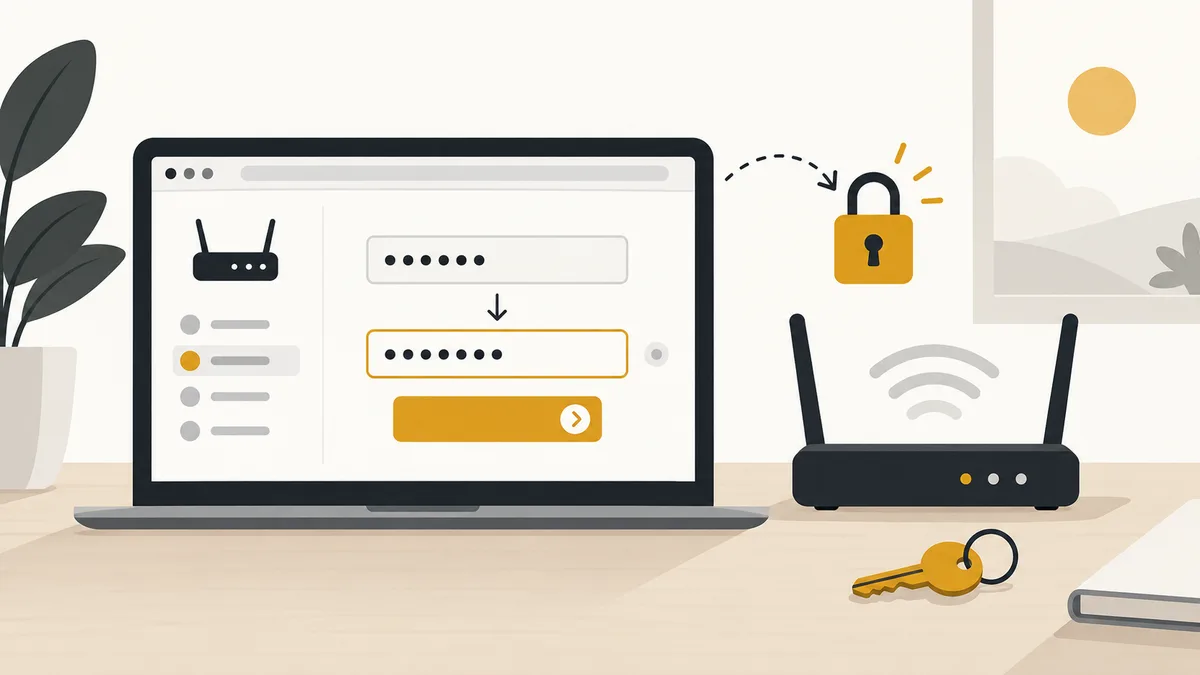
The administrator password controls access to the router panel itself. Changing it from the factory default stops anyone on your network from altering your configuration, and it does not affect Wi-Fi.
- Log in at 192.168.1.1, then open the System Tools, Administration or Management menu, depending on what your firmware calls it.
- Look for the password or user account option, which usually appears under a login, security or user management heading.
- Enter the current administrator password once, then type your new password twice into the two confirmation fields shown below.
- Choose something long and unrelated to your Wi-Fi key, your own name, your address or the router brand itself.
- Save the settings and wait while the router applies them; some models reboot before the new password takes effect.
- Log in again with the new administrator password and store it somewhere safe, for example inside a trusted password manager.
Checking Which Gateway Address Your Router Uses
Your device already knows the router’s address. On Windows, open Command Prompt, type ipconfig, and read the Default Gateway line for your active adapter. On macOS, open System Settings, choose Network, select your connection, then look under Details for the Router entry.
On Android, open the saved Wi-Fi network and check its gateway or router field. On iPhone, tap the information icon beside your network and read the Router line. The sticker on the router usually prints the same address. If it shows 192.168.0.1, 10.0.0.1 or something else, use that instead of 192.168.1.1.
When 192.168.1.1 Won’t Load: Six Checks in Order
When 192.168.1.1 refuses to open, the cause is usually the wrong gateway address, a browser habit, or a broken connection. Work through these checks in the order shown, starting with the simplest.
- Confirm your device is connected to that router’s Wi-Fi, not mobile data, a neighbour’s network or a different access point.
- Check the spelling; 192.168.l.l with letters instead of digits sends you to a search engine instead of the router.
- Type the full address http://192.168.1.1 so the browser opens a page rather than treating your entry as a search.
- Verify the real gateway with ipconfig or your phone’s network details, because many routers use a completely different address.
- Try another browser or a private window, then temporarily switch off any VPN, proxy or ad blocking extension you use.
- Restart the router, and if the panel still refuses to load, press its reset button to restore factory settings.
Reading the “Refused” and “Timed Out” Errors
The two errors point to different problems. Connection refused means a device answered but rejected the request, so try https://192.168.1.1, or the hostname printed on the label, in case the panel uses another port.
Timed out usually means nothing replied at all. Your device is probably on a different network or subnet, or 192.168.1.1 simply is not your gateway. Check the gateway address, disconnect any VPN, and swap the Ethernet cable before resetting anything.
Does the Admin Page Work With the Internet Down?
Yes. The router panel lives on the router itself, so local administration works without an active internet connection. Your device only has to be connected to that router by Wi-Fi or cable. A dead broadband line does not block the login page.
Note: Mobile data cannot reach 192.168.1.1. If your phone falls back to cellular while the broadband is down, rejoin the router’s Wi-Fi before opening the login page.
Router Brands That Often Ship With 192.168.1.1
Several manufacturers ship models that use 192.168.1.1 as the default gateway, although this varies by model, firmware and internet provider. Always confirm the address printed for your own unit first.
- TP-Link: Many TP-Link models open at 192.168.1.1, while others use 192.168.0.1 or the tplinkwifi.net hostname printed on the sticker underneath the device.
- Linksys: Linksys routers have long used 192.168.1.1, and many recent models also respond to a local hostname or the companion mobile app.
- Asus: Asus models typically load at 192.168.1.1 or router.asus.com, so either address usually reaches the same administration panel on a connected device.
- D-Link: Several D-Link routers use 192.168.1.1, while others default to 192.168.0.1, so check the label before assuming which address applies to yours.
Moving the Router Off 192.168.1.1
Changing the router’s local IP address helps when it clashes with a second router or a VPN subnet. Plan for a brief disconnection while your devices pick up new addresses.
- Log in at 192.168.1.1 and open the LAN, Network or Local Network section inside your router’s main settings panel.
- Find the IP address field showing 192.168.1.1 and replace it with another private address, such as 192.168.5.1 or 10.0.10.1.
- Adjust the DHCP range so it sits inside the new subnet, otherwise devices may fail to receive working addresses.
- Save the settings, then expect the router to reboot while your connection drops and the new configuration is applied.
- Reconnect your device, then open the new address in a browser, because 192.168.1.1 no longer reaches the administration panel.
How Safe Is the Router Login Page?
Yes, when it is used properly. The address is private and unreachable from the public internet, so the login page is exposed only to devices already on your network. The real risks are factory credentials, remote management left switched on, and outdated firmware. Change the administrator password, disable remote access unless you need it, and install firmware updates when your manufacturer publishes them.
Quick Answers About the 192.168.1.1 Login
Short answers to the questions people ask most often about reaching the router panel at 192.168.1.1, recovering lost credentials and fixing a login page that will not load properly.
Is 192.168.l.l the same as 192.168.1.1?
No. 192.168.l.l uses lowercase letter L instead of the digit 1, so it is not a valid IP address. Browsers send it to a search engine, and the router never sees the request.
What is the default username and password for 192.168.1.1?
There is no single pair. Each manufacturer sets its own, and providers frequently assign a unique password per unit. The label on the router is the reliable source.
Why does 192.168.1.1 not open on my phone?
Usually the phone is on mobile data rather than the router’s Wi-Fi. If the connection is correct, the router probably uses a different gateway, so check the network details in your Wi-Fi settings.
Can someone outside my home open 192.168.1.1?
Not through the public internet, because private addresses are not routable. Remote management, weak administrator credentials or malware on a connected device are the realistic ways access gets abused.
Does changing my Wi-Fi password change the admin password?
No. They are separate. The Wi-Fi password lets devices join the wireless network; the administrator password lets you open the router panel and change its configuration.
Do I need an internet connection to log in?
No. The router serves the panel locally, so the login page works during an outage as long as your device stays connected to the router by Wi-Fi or cable.
What happens if I reset my router?
A factory reset restores the default administrator credentials and wipes your settings, including the Wi-Fi name, password and any port forwarding rules. You then set everything up again.
Why does the login page ask for a password I never set?
Someone changed it earlier, or your provider configured the router before delivery. Check the label and provider documentation first; a reset is the fallback when nothing works.
Is 19216811 the same as 192.168.1.1?
Not as typed. 19216811 is 192.168.1.1 with the dots left out, and browsers treat it as a search or website name. Enter the four groups separated by dots.
Can two devices use 192.168.1.1 at the same time?
On one network, only the router should hold it. Adding a second router with the same default address creates a conflict, which is why changing the local IP on one of them helps.
Before You Log Out
192.168.1.1 opens the admin panel on many home routers, but not all of them, so confirm your default gateway before you troubleshoot. Once you are in, change the administrator password, set a strong Wi-Fi key, and keep firmware current. Remember that menu names differ between brands and firmware versions, and that local administration works even when your broadband is down. When the page will not load, check the connection and spelling first, then verify the gateway your own device reports.