192.168.1.1 in Plain English
192.168.1.1 is a private address that many home routers use for themselves, and typing it into a browser opens the router’s own settings pages. From there you control the Wi-Fi name and password, connected devices, and what can reach your network from outside.
This page is for anyone who wants to understand their home router, not just get past a login box. It covers what the address does, how to confirm it’s yours, what to change on day one and how to fix common problems.
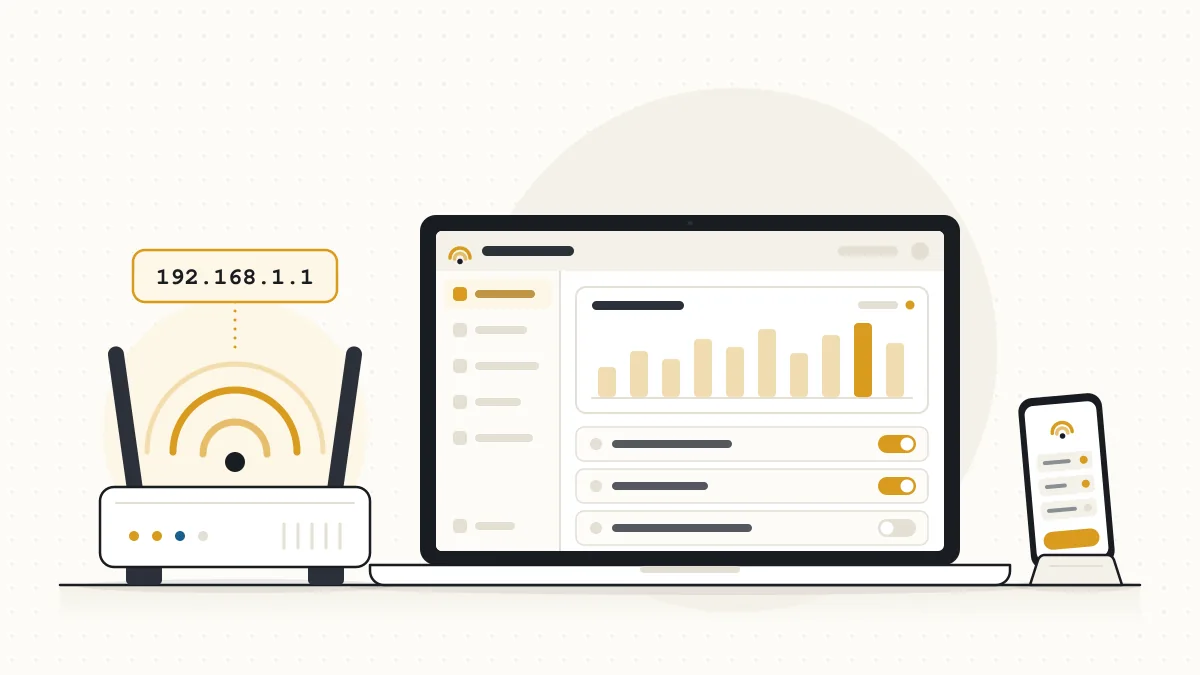
The One-Minute Version: Opening Your Router Settings
You can reach the router admin panel on most home setups in four steps.
- Join the router’s Wi-Fi or plug into it with an Ethernet cable, and switch off mobile data on your phone for now.
- Type http://192.168.1.1 into the browser’s address bar and press Enter.
- Sign in with the administrator username and password from the router label, which are not the same as your Wi-Fi password.
- Once the dashboard appears, open the menu you need; labels differ between manufacturers and firmware versions.
For credential help and fixes when the page won’t load, see the complete router login walkthrough.
Where 192.168.1.1 Fits on Your Home Network
On networks that use it, it is the router’s inside address and every device’s route to the internet. A router has two addresses: this private one facing your devices, and a public one your provider assigns on the internet side.
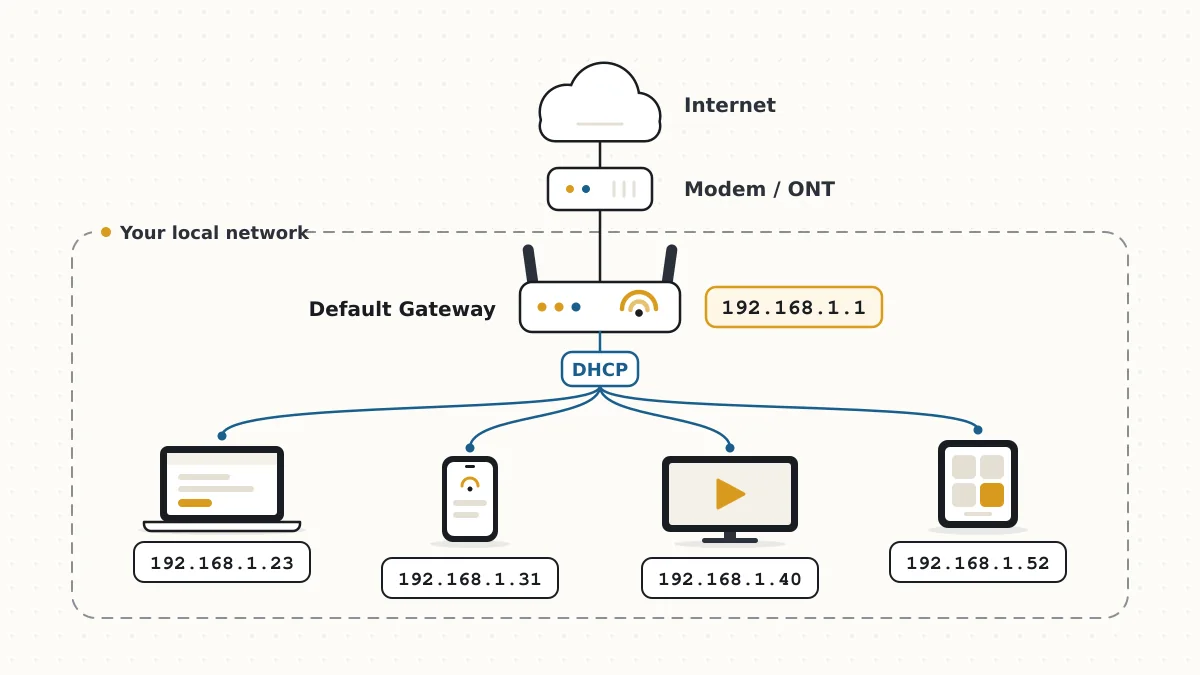
When a phone or laptop joins, the router’s DHCP server lends it an unused address, such as 192.168.1.37. It also hands over three other details: the subnet mask, the default gateway (the router itself) and at least one DNS server. Many routers list themselves as the DNS server and pass lookups on to your provider or to a DNS service you pick.
The default gateway is where a device sends anything that isn’t on the local network. A print job to the printer in the next room stays local, while a web page request goes to the gateway first. Because the router is the gateway, the same address also serves its settings pages.
On many fixed broadband plans, your provider gives the router one public IPv4 address. Network Address Translation (NAT) lets every device at home share it: the router rewrites outgoing traffic so it appears to come from the public address, then matches each reply to the device that asked. Traffic nobody requested has no match, so it doesn’t reach your devices unless you create a forwarding rule.
192.168.1.1 sits inside one of three blocks reserved for private networks by RFC 1918: 10.0.0.0 to 10.255.255.255, 172.16.0.0 to 172.31.255.255, and 192.168.0.0 to 192.168.255.255. Internet routers don’t carry traffic for these ranges, so millions of homes can reuse the same numbers without clashing.
The usual subnet mask here is 255.255.255.0, written /24 in shorthand. It means the first three numbers (192.168.1) name the network and the last number names the device. Of the 256 possible values, .0 identifies the network and .255 is the broadcast address, which leaves .1 through .254 for hosts. With the router on .1, devices can use 192.168.1.2 through 192.168.1.254, although many routers lend out only part of that range.
If your provider supports IPv6, devices may also receive global IPv6 addresses. On typical home routers, a stateful IPv6 firewall, rather than IPv4-style NAT, blocks unsolicited inbound connections. The settings page stays at its IPv4 address.
Is 192.168.1.1 Really Your Router? A Quick Check
Not always, so confirm it before troubleshooting a login page that may never load. Your device already knows the answer.
On a Windows PC, ipconfig lists it as Default Gateway. On a Mac, route -n get default in Terminal prints it on the gateway line, and on Linux ip route shows it after “default via”. Phones show it in the details of the connected Wi-Fi network, and locating the gateway on any phone or computer has its own walkthrough.
If the result is different, use that address instead. The gateways below come up often, but treat them as patterns, not rules: one brand can ship different defaults across models, and providers often change them.
| Gateway address | Where it’s often seen | Worth knowing |
|---|---|---|
| 192.168.1.1 | Many retail and provider-supplied routers | Devices sit on 192.168.1.x |
| 192.168.0.1 | Many retail routers, including some TP-Link, D-Link and Netgear models | A different subnet from 192.168.1.x |
| 192.168.1.254 | Provider gateways, including many supplied by AT&T | The router takes the top of the range |
| 10.0.0.1 | Xfinity gateways and some other cable setups | Part of the larger 10.x.x.x private block |
| 192.168.2.1 | Some Belkin routers and some provider units | Devices sit on 192.168.2.x |
| 192.168.12.1 | T-Mobile 5G Home Internet gateways | Much of the setup happens in the provider’s app |
| 192.168.86.1 | Google Nest Wifi and Google Wifi systems | Managed through the Google Home app |
| 192.168.100.1 | Many cable modems | The modem’s status page, not the router’s settings |
A device address starting with 169.254 means the router never answered; the troubleshooting table below covers that.
First-Login Checklist for a New or Reset Router
Work through this list on a new router or right after a factory reset. Secure the panel first, then the Wi-Fi, then the rest.
- Replace the factory administrator password with a long, unique one. It guards the router configuration only and does not change your Wi-Fi password.
- Rename the Wi-Fi network so it doesn’t reveal your name, address or router model, and set a new Wi-Fi password of at least 12 characters that differs from the admin one.
- Choose WPA3-Personal, or the WPA2/WPA3 mixed mode if older devices need it, and avoid any option labeled WEP, WPA or TKIP.
- Check for a firmware update and install it, or switch on automatic updates if the router offers them.
- Turn off WPS, the push-button and PIN pairing feature, unless you rely on it; its PIN mode has a known brute-force weakness.
- Confirm that remote management is off. Firmware may call it remote access, remote administration or WAN access.
- Set the correct time zone so schedules, logs and parental controls run at the right hours.
- Save a configuration backup once everything works, and store the file somewhere private.
Router Settings Worth Knowing
Menu names differ, but most panels group the same core controls. These matter most on an ordinary home network.
WPA3, WPA2 and mixed mode
WPA3-Personal is the better choice when your devices support it. It replaces WPA2’s pre-shared key handshake with a method called SAE, which stops someone who records your Wi-Fi traffic from testing password guesses offline. Wi-Fi on the 6 GHz band, found on Wi-Fi 6E and many Wi-Fi 7 routers, requires WPA3.
WPA2-Personal with AES is still acceptable, and mixed WPA2/WPA3 mode lets older printers and smart plugs connect while newer devices use WPA3. If an older gadget won’t join in mixed mode, fall back to WPA2-Personal with AES. Either way, a long password matters.
Wireless bands, channels and guest access
Most home routers broadcast on 2.4 GHz and 5 GHz, and newer models add 6 GHz. The 2.4 GHz band reaches farther through walls but is slower and more crowded, while the higher bands are faster at shorter range.
Many routers merge the bands under one network name, often labeled Smart Connect or band steering, and move devices between them. If a smart-home gadget that only supports 2.4 GHz won’t pair, temporarily giving each band its own name often gets it connected. Automatic channel selection suits most homes; if you set channels by hand on 2.4 GHz, 1, 6 and 11 are the ones that don’t overlap in the US.
A guest network gives visitors internet access with a separate password while keeping them away from your computers and shared files. That separation holds only while the option letting guests reach local devices stays off. It is also a reasonable place for smart TVs and plugs, though casting from a phone usually needs both devices on the same network.
LAN and DHCP, including address reservations
The LAN section holds the router’s own address and subnet mask, and the DHCP section sets the pool of addresses it lends out. Leave both alone unless you have a clear reason. If you change the router’s address, the settings page moves with it.
A DHCP reservation, sometimes called a static lease, is the setting most people need. It ties one address to a device’s MAC address, so a printer, game console or camera gets the same address every time, which port forwarding rules depend on.
Note: Phones and laptops often use a private, randomized MAC address for each Wi-Fi network, and some systems can rotate it over time. If a reservation or device block stops working, check that setting on the device.
Port forwarding and UPnP, explained plainly
Port forwarding tells the router to pass traffic arriving on a chosen port of your public address to one device inside. It’s how people reach a home game server, media server or camera recorder while away. Each rule needs the device’s local address, the port number and the protocol (TCP or UDP), which the software’s documentation should list.
UPnP does the same job automatically: a console or app asks the router to open a port, and the router agrees without asking you. The catch is that any program on your network can make the same request, including malware, and no password is involved. If nothing at home needs UPnP, switching it off is a sensible default. If a console reports a strict or moderate NAT type, either leave UPnP on or forward the specific ports the console maker lists.
Forwarding fails in two common situations:
- Double NAT: your router’s WAN address is itself private, such as 192.168.0.x, so another router sits in front of it. Putting the provider’s unit into bridge or passthrough mode usually fixes this.
- Carrier-grade NAT: your router’s WAN address falls between 100.64.0.0 and 100.127.255.255, or doesn’t match what a “what is my IP” search shows. Your provider shares one public address among customers, and only it can change that.
Delete forwarding rules you no longer use. Each one is an opening from the internet to a device in your home.
Parental controls and device blocking
Parental controls usually cover internet schedules, pausing a device on demand and filtering categories of websites. Router-level rules cover every device without extra software, but a phone that switches to mobile data, connects through a VPN or uses encrypted DNS can slip past them.
Device blocking works from the connected-devices list and usually relies on MAC addresses, so the randomized-address note above applies here as well. Some manufacturers have moved these controls into their phone app, and a few put advanced filtering behind a subscription.
Firmware updates and configuration backups
Firmware is the router’s operating system, and updates fix security flaws as well as bugs. Look for an automatic update option under the system or administration menu; if there isn’t one, check manually every few months. Providers often update the gateways they supply remotely.
Install firmware only through the panel, the official app or the manufacturer’s support site, and never power the router off mid-update. Every model eventually stops receiving updates, and at that point replacing it is safer than running it without fixes.
A configuration backup file lets you restore your router settings after a reset. Save one after setup and after any big change. It usually restores only to the same model, and it may contain your passwords, so keep it private.
Web Panel or Phone App: Which One to Use
Use whichever your router supports well; many recent models offer both. Manufacturers increasingly steer setup toward a phone app, which makes first-time installs and alerts simpler.
Some apps require a cloud account with the manufacturer, so management requests may pass through its servers. Give that account a strong password and turn on two-step verification if it’s offered, because whoever controls the account controls your router.
The local web panel usually still works and often exposes settings the app hides. Some mesh systems skip the web panel entirely and run only through their app, so check before buying if local control matters to you. Provider gateways often add a third route, the provider’s own app, which usually handles Wi-Fi details but not always deeper settings.
Locked Out? Getting Back In Without Guesswork
Start with the least disruptive option and work upward. A factory reset solves almost any lockout, but it also wipes your setup, so save it for last.
- Try the administrator credentials printed on the router label, and check that you aren’t typing the Wi-Fi password by mistake.
- Search your password manager or your browser’s saved passwords for the router’s address.
- If your provider supplied the router, check its app or account site, or call support.
- For an app-managed router, sign in with the account used during setup, using account recovery if needed.
- Reset only when nothing else works; the guide to wiping a router back to factory defaults covers the button, the timing and the cleanup.
Before resetting, find any connection details from your provider. Some DSL and fiber services need a PPPoE username and password in the router, and a reset erases those along with your Wi-Fi settings, forwarding rules and reservations.
Tip: Restoring a configuration backup after a reset brings your settings back, but it may also bring back the administrator password you forgot. Change it as soon as the restore finishes.
Symptom, Likely Cause and What to Try
Most access problems trace back to the connection or the address, not a faulty router. Find the closest row and try its fix before anything drastic.
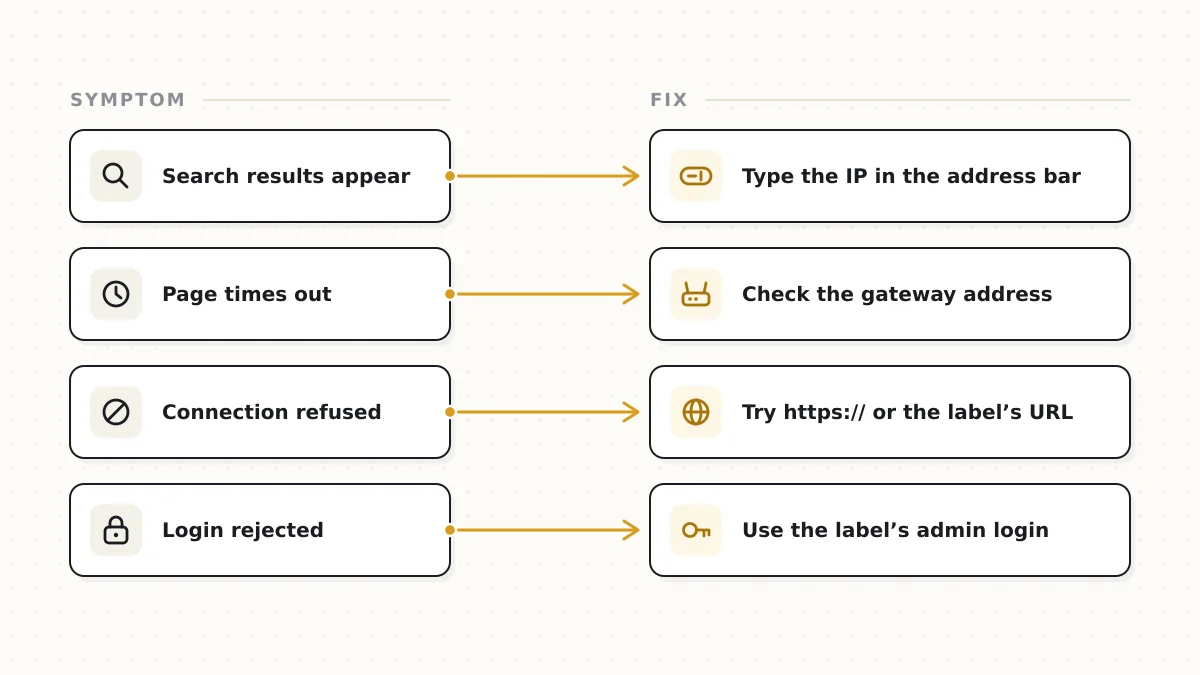
| What you see | Likely cause | What to try |
|---|---|---|
| Search results instead of a login page | Address typed into the search box, or entered as 192.168.l.l with letters | Type the full http:// address into the address bar |
| Page spins, then times out | Mobile data, a VPN, a different network, or a different gateway | Rejoin your Wi-Fi, pause the VPN, check the reported gateway |
| Login page loads but rejects the password | Wi-Fi password used instead of the admin one, or it was changed | Check the label and your provider; reset only if both fail |
| An unfamiliar login page appears | A second router, extender or modem answering at that address | Check the brand shown, then change the duplicate device’s address |
| Settings won’t save or the page freezes | Session timeout, a browser extension or a cached page | Sign in again in a private window or another browser |
| Wi-Fi connected but no internet | Provider outage, modem fault or a dropped WAN link | Check the panel’s internet status, restart the modem, then the router |
| Device shows a 169.254.x.x address | No reply from the router’s DHCP server | Restart the router and confirm its DHCP server is on |
| Port forward has no effect | Device address changed, double NAT or carrier-grade NAT | Add a reservation, then compare the WAN and public addresses |
When the login page itself is the sticking point, the ordered fixes for a panel that won’t open go into more depth.
Keeping the Router Panel Locked Down
After setup, router security is mostly habit: keep the panel reachable only from inside your network, and notice when something changes.
- Look over the connected-devices list now and then, and investigate names you don’t recognize.
- Sign out when you finish, and don’t let a shared computer’s browser save the administrator password.
- Recheck remote management and UPnP after a reset or a major update, since defaults can return.
- Change the Wi-Fi password when someone who had it should no longer have access, and give short-term visitors the guest network instead.
CISA’s home network security guidance covers the wider picture, including device updates and firewalls.
Common Questions About the 192.168.1.1 Gateway
Why do so many routers use 192.168.1.1?
Manufacturers chose it as a default; nothing in the networking standards requires it. The 192.168.1.x subnet became a common starting point in the private range, and .1 is its first host address, which makes it easy to remember and print on a label.
What’s the difference between 192.168.1.1 and 192.168.0.1?
Only the subnet. Both are private gateway addresses that work the same way, and neither is faster or safer. A device on a 192.168.0.x network won’t find a router at 192.168.1.1, which is why guessing the wrong one fails.
Is 192.168.1.1 my public IP address?
No. It only has meaning inside your home network. The router’s internet or WAN status page shows the address your provider assigned, and a “what is my IP” search shows the one websites see.
Which subnet mask goes with 192.168.1.1?
Usually 255.255.255.0, or /24 in shorthand. That gives the network 254 host addresses, from .1 to .254. If you or your provider changed the LAN settings, check the mask listed there.
Can I ping 192.168.1.1 to test my connection?
Yes, for the link between your device and the router. Run ping 192.168.1.1 in Command Prompt or Terminal, and replies mean that part works (press Ctrl+C to stop it on a Mac or Linux). To test the internet beyond the router, ping a public address such as 1.1.1.1 next.
Why does my browser say the router page is “not secure”?
Most router panels use plain HTTP or a self-signed certificate that browsers can’t verify, which triggers the warning. On your own network that is expected, as long as you typed the address yourself and are connected to your own Wi-Fi.
Does a mesh Wi-Fi system still use a gateway address?
Yes. The main unit connected to your modem acts as the router and holds the gateway address, while the other units extend its Wi-Fi. If the mesh runs in access-point or bridge mode behind a provider gateway, the provider’s unit holds that address instead.
Before You Close the Admin Tab
Most router problems become easier once you know what the gateway address does. Check the connection, confirm the address, then change one setting at a time and write down what you changed. Bookmark the gateway your own device reports, store the administrator password where you will find it again, and come back to the panel when you add equipment, switch providers or see a firmware notice.