Why the Default Gateway Address Matters
Your router’s IP address is the default gateway, the local address your devices send traffic through to reach the internet. You need it to open the router admin panel or set up port forwarding. Guessing is slow, because home routers ship with several different private addresses.
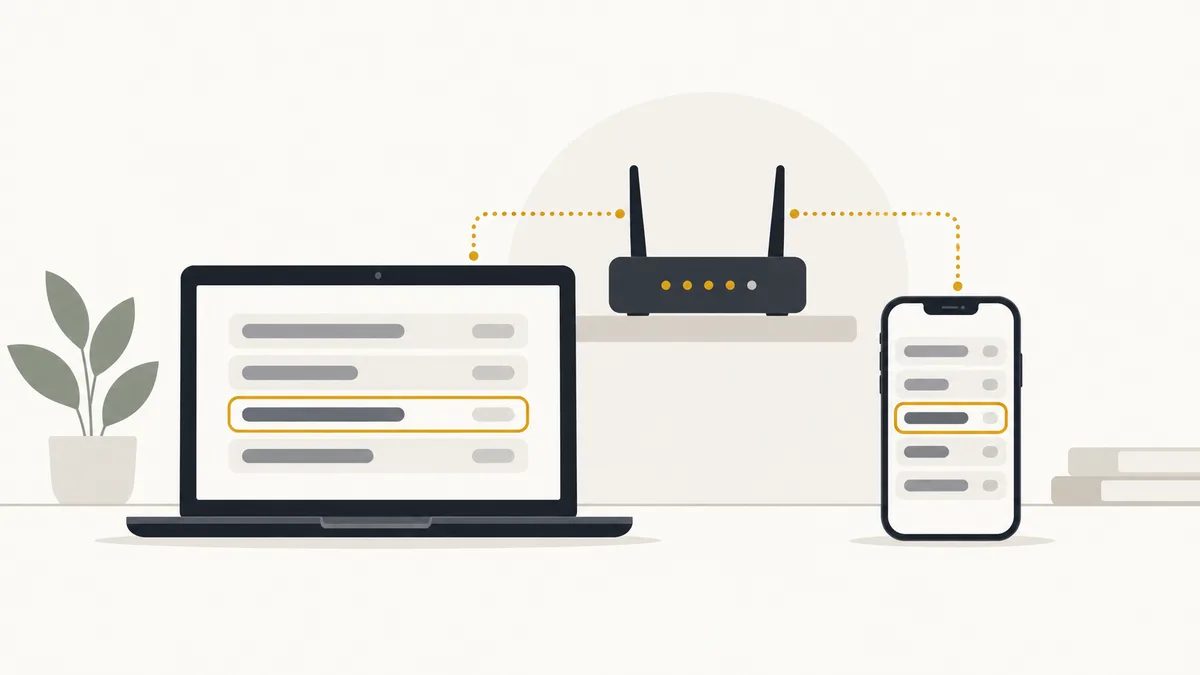
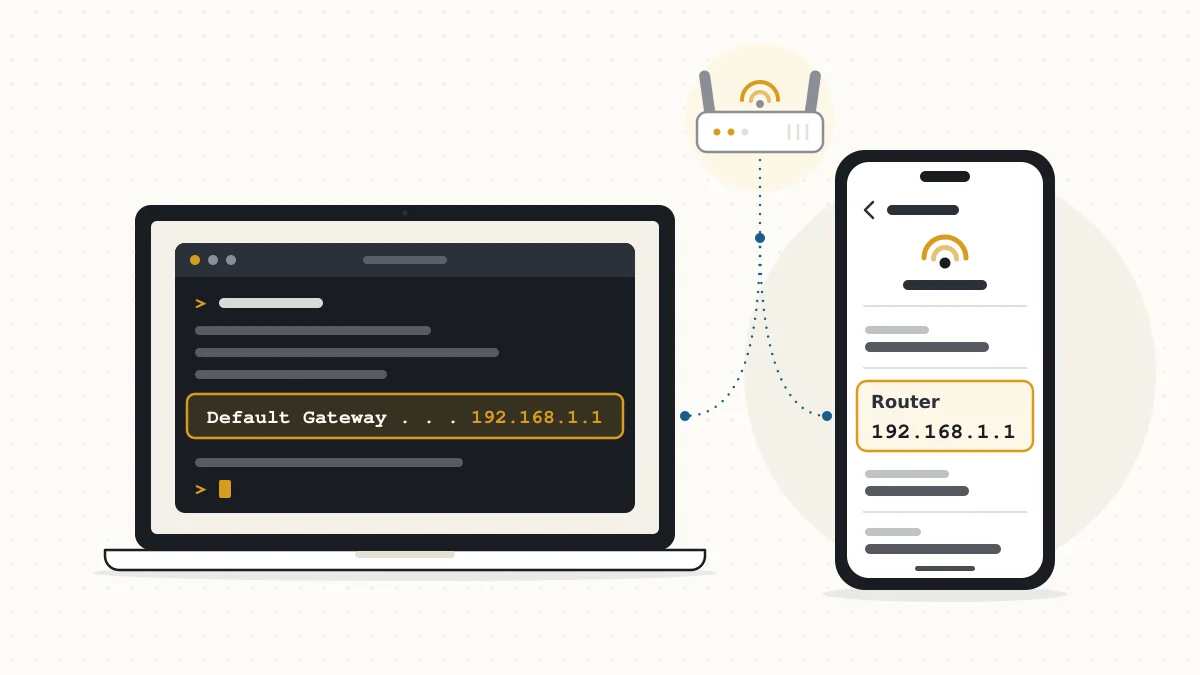
If you’re asking “what is my router IP?”, any device on your Wi-Fi can answer. Each one receives the gateway through DHCP when it joins, and keeps it in its network details.
Start With the Sticker on the Router
The quickest check needs no screen at all: turn the router over and read its label. Most manufacturers print the default login address there, either as an IP such as 192.168.0.1 or as a local web address.
The sticker only shows the factory value, though. If someone changed the LAN settings later, confirm the live address on a connected device.
Find the Default Gateway on Windows 11 and 10
On Windows, the ipconfig command shows the default gateway in a few seconds. Connect the PC to the router by Wi-Fi or cable before you start.
- Press the Windows key, type cmd, and open Command Prompt from the search results.
- Type ipconfig and press Enter to list every network adapter on the computer.
- Find the adapter you are actually using, usually named Wireless LAN adapter Wi-Fi or Ethernet adapter Ethernet.
- Read the Default Gateway line under that adapter; the IPv4 address shown there is your router.
If the Default Gateway line starts with an fe80:: address and shows IPv4 digits on the next line, use the IPv4 one. The fe80 entry is the router’s IPv6 link-local address.
Prefer menus? On Windows 11, go to Settings > Network & internet > Advanced network settings > Hardware and connection properties, where each adapter’s block includes a default gateway entry. On Windows 10, open Settings > Network & Internet > Status and select the link for hardware and connection properties.
PowerShell works too. Run Get-NetIPConfiguration and read the IPv4DefaultGateway field under the adapter that shows your network name.
Check the Router Field on a Mac
On a Mac, the gateway is listed as Router in the TCP/IP details of your connection. On macOS Ventura and later, open System Settings > Network, choose Wi-Fi or Ethernet, then click Details… for the active connection. Select TCP/IP in the sidebar and read the Router field.
Terminal is faster. Run route -n get default and read the line that begins with gateway.
On Monterey or earlier, select your connection in System Preferences > Network, then open Advanced > TCP/IP to find the same Router field.
iPhone and iPad: Read the Router Line
On an iPhone or iPad, the router’s address appears in the details of the Wi-Fi network you’re on. Open Settings > Wi-Fi, then tap the (i) icon next to the connected network. Scroll to the IPv4 section and read the Router entry.
That field only appears while the device is joined to the network, so rejoin the Wi-Fi if the phone has switched to cellular.
Look Up the Gateway on an Android Phone
Android shows the gateway inside the connected Wi-Fi network’s details, but menu names vary by phone maker and Android version. A typical route is Settings > Network & internet (or Connections) > Wi-Fi, then tap the connected network or the gear icon beside it.
Look for a field called Gateway or Router. Some phones tuck it under an Advanced or View more section, so expand those if nothing appears at first.
If your phone lists only its own IP address, check from a computer or the router label instead of guessing.
Chromebooks: The Gateway Entry in Network Settings
ChromeOS lists the gateway on the page for your current network. Open Settings > Network > Wi-Fi and select the network you’re connected to. In the Network section of that page, the Gateway line shows your router’s address.
Linux: Read the Address After “via”
On most Linux distributions, one terminal command returns the gateway. Run ip route show default and you’ll see a line like default via 192.168.1.1 dev wlan0. The address after via is your router, and the name after dev is the interface in use.
If two default lines appear because Wi-Fi and Ethernet are both connected, the one with the lower metric is preferred.
What Common Gateway Addresses Usually Mean
The number you find often hints at the type of router you have, but it never proves the brand or model. Use this table as a rough guide only.
| Gateway you see | What it often indicates |
|---|---|
| 192.168.1.1 | A standalone router or provider modem-router; used by many brands |
| 192.168.0.1 | Another very common home router default |
| 192.168.1.254 | A provider-supplied gateway, including many AT&T units |
| 10.0.0.1 | A cable provider gateway, including many Xfinity models |
| 192.168.86.1 | A Google Wifi or Nest Wifi mesh system |
| 192.168.8.1 | A mobile hotspot or 4G/5G home router |
| 172.16.x.x | An office or business network |
Seeing 192.168.1.1? The complete 192.168.1.1 guide explains what that address does on a home network.
If the Gateway Looks Blank, Odd or Wrong
An unexpected result usually means the device isn’t properly connected to the router. Match what you see to one of these cases.
- Your own IP starts with 169.254: The device assigned itself an address because it never got a DHCP lease, so the gateway is usually blank too. Reconnect, then restart the router if nothing changes.
- Gateway field is empty: You may be reading a disconnected or virtual adapter. Check the one tied to your Wi-Fi or Ethernet connection.
- VPN is switched on: Many VPN apps take over the default route, so the gateway can point into the tunnel or vanish. Disconnect and look again.
- Phone is on mobile data: Cellular has no home router to report. Join the Wi-Fi network first.
- Mesh system or extender: The main router, or primary mesh node, holds the gateway address. Extenders and satellite nodes get their own separate addresses.
Tip: If your own router sits behind a provider modem-router, your devices report only your router’s address. The provider unit has its own admin address, often printed on its label.
Next: Open the Router Login Page
With the gateway in hand, type it into a browser’s address bar on the same network to reach the sign-in screen. From there you can sign in to the router panel and change the default password. If nobody knows the administrator password, a factory reset brings back the defaults but wipes your settings.
Router IP and Gateway Questions
Is my router’s IP address the same as my public IP address?
No. The gateway is a private address that only works inside your home network. Your public IP is assigned by your internet provider to the router’s internet-facing side, and it’s the address websites see.
Can the default gateway change by itself?
Rarely. It usually changes only after a factory reset, a router swap, a provider update to a managed gateway, or someone editing the LAN settings. If a saved router bookmark stops working, check the gateway again.
Is the gateway the same on Wi-Fi and Ethernet?
Yes, when both connections go to the same router. A different result usually means the cable is plugged into another device, such as the provider’s modem-router instead of your own router.
How do I find the IP address of a second router or Wi-Fi extender?
Log in to the main router and check its connected-devices or DHCP client list for the extender’s name. Devices joined through an extender usually still list the main router as their gateway, so the manufacturer’s app or the main router’s list is the better source.
What does “Router” mean in an iPhone’s Wi-Fi details?
It’s Apple’s label for the default gateway. The address shown there is the one to type into Safari to open your router’s login page.